
Developers
Integrate agents via MCP tools or REST APIs. Keep a Human‑in‑the‑Loop for safe decisions, with optional end‑to‑end encryption.
Architecture
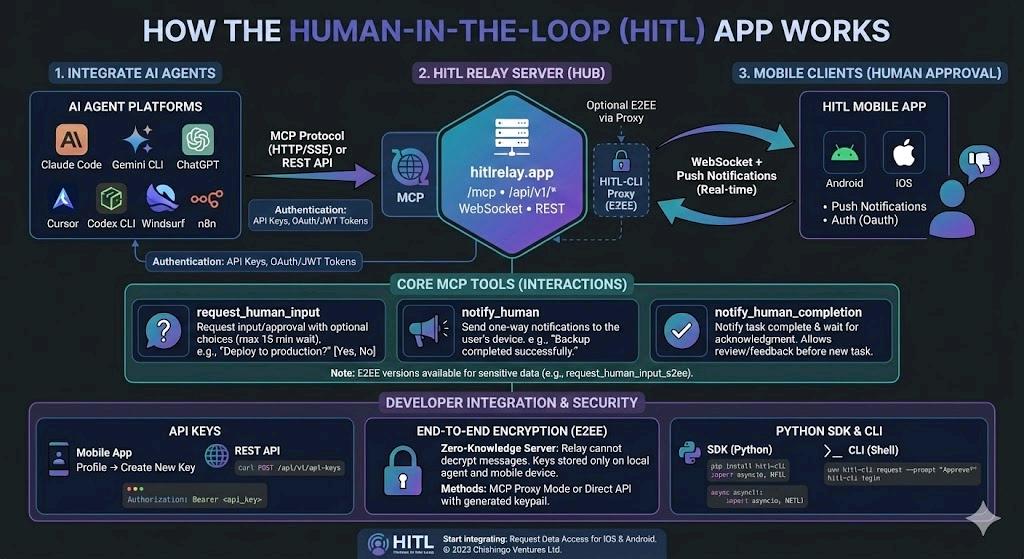
Agents connect via MCP (Streamable HTTP) or REST; the Relay brokers requests and responses, and the mobile app handles secure notifications and approvals.
MCP Tools
HITL Relay MCP Server exposes three core MCP tools for agents to interact with the user. All human in hte loop interactions have a maximum wait time of 15 minutes for responses of the user
request_human_input– Request input from the human user with optional choices (for easy human reply)notify_human– Send one-way notifications to the user's devicenotify_human_completion– Notify user when a task is complete and wait for acknowledgment. This allows user to review provide feedback or kick off a new task
Note: E2EE versions (request_human_input_e2ee, notify_human_e2ee) available for sensitive data. Agent registration is automatic.
MCP Prompts
HITL Relay MCP server provides a useful starter prompt hitl_coms_only for commnicating to the agent/llm on how to use human loop tool for all further communications with the user
API Keys
Create agent-scoped API keys for programmatic access to HITL from your applications.
Via Mobile App
- Open HITL mobile app
- Go to Profile → API Keys
- Tap "Create New API Key"
- Select the agent (or create the agent) to scope the key to
- Copy the key (shown once only)
Via REST API
# Create a new API key
curl -X POST https://hitlrelay.app/api/v1/api-keys \
  -H "Authorization: Bearer <jwt>" \
  -H "Content-Type: application/json" \
  -d '{"description":"CLI key","agent_id":"<uuid>"}'

# Response
{"api_key":"mcp_pk_...","prefix":"mcp_pk_x"}
Pass API keys via Authorization: Bearer <api_key> header or HITL_API_KEY environment variable.
End-to-End Encryption (E2EE)
For maximum privacy, HITL supports end-to-end encryption where the relay server cannot decrypt your messages. Only your local agent and mobile device have the decryption keys.
Method 1: MCP Proxy Mode
The MCP client spawns hitl-cli proxy as a local stdio process. The proxy handles encryption and connects to the relay server.
# Configure Claude Desktop (claude_desktop_config.json)
{
  "mcpServers": {
    "hitl-e2ee": {
      "command": "hitl-cli",
      "args": ["proxy", "https://hitlrelay.app/mcp-server/mcp/"]
    }
  }
}

# Or for Claude Code
claude mcp add hitl-e2ee -- hitl-cli proxy https://hitlrelay.app/mcp-server/mcp/
Flow: MCP Client → hitl-cli proxy (stdio localhost) → Encrypts → https://hitlrelay.app → Mobile App
Method 2: Direct API with E2EE
Use API keys with E2EE enabled for direct API calls.
# Enable E2EE for hitl-cli
export HITL_API_KEY="mcp_pk_..."
export HITL_E2EE_ENABLED=true

# CLI automatically generates keypair
hitl-cli request --prompt "Deploy to production?"

# Keys stored at:
# ~/.config/hitl-shin-relay/agent.key
Public key is auto-registered with your account and synced to mobile app
How It Works
- Keypair Generation: CLI generates Ed25519 keypair locally (PyNaCl/libsodium)
- Key Registration: Public key registered with relay server, synced to mobile app
- Encryption: Messages encrypted with recipient's public key before sending
- Zero-Knowledge Server: Relay sees only encrypted blobs, cannot decrypt content
- Decryption: Only mobile app (with private key) can decrypt and display messages
Note: E2EE MCP tools (request_human_input_e2ee, notify_human_e2ee) are available but transparent when using proxy mode.
Python SDK Integration
Integrate HITL capabilities directly into your Python applications using the official SDK:
Recommended: Using the HITL SDK
Install hitl-cli via pip and use the HITL class for seamless integration:
pip install hitl-cliimport asyncio
from hitl_cli import HITL
async def main():
# SDK automatically uses your configured credentials
# (OAuth via hitl-cli login, or HITL_API_KEY environment variable)
hitl = HITL()
try:
# Request input with choices
response = await hitl.request_input(
"Do you want to proceed with the database migration?",
choices=["Yes", "No", "Postpone"]
)
print(f"Human response: {response}")
if response == "Yes":
await hitl.notify("Database migration started.")
# ... run migration ...
await hitl.notify_completion("The database migration is complete!")
except Exception as e:
print(f"An error occurred: {e}")
if __name__ == "__main__":
asyncio.run(main())Alternative: Direct REST API
For non-Python environments or custom integrations, you can use the REST API directly:
import os
import requests

API_KEY = os.getenv("HITL_API_KEY", "mcp_pk_...")
BASE_URL = "https://hitlrelay.app/api/v1"
headers = {
    "Authorization": f"Bearer {API_KEY}",
    "Content-Type": "application/json"
}

# Request human input
def request_approval(prompt, choices=None):
    payload = {"prompt": prompt, "choices": choices or ["Approve", "Deny"]}
    resp = requests.post(f"{BASE_URL}/hitl/request", headers=headers, json=payload)
    resp.raise_for_status()
    return resp.json()

# Usage
result = request_approval("Deploy to production?", ["Deploy Now", "Cancel"])
print(f"User responded: {result['response']}")
Command Line Interface
Use the HITL CLI for quick integrations from shell scripts and terminal workflows:
Option 1: Using UV (Recommended - No Installation Required)
Run commands instantly with uvx without installing anything:
# Authenticate (OAuth 2.1 - opens browser)
uvx hitl-cli login --name "My Workstation"

# Request human input
uvx hitl-cli request --prompt "Should I proceed with deployment?" \
  --choice "Yes" --choice "No" --choice "Ask me later"

# Send notification
uvx hitl-cli notify --message "Backup completed successfully"

# Notify task completion
uvx hitl-cli notify-completion --summary "Data processing finished: 10,000 records in 5 minutes"

# Or use API key (for automation/CI/CD)
export HITL_API_KEY="mcp_pk_..."
uvx hitl-cli request --prompt "Deploy now?"
Option 2: Traditional pip Install
# Install from PyPI
pip install hitl-cli

# Then use hitl-cli commands
hitl-cli login --name "My Workstation"
hitl-cli request --prompt "Approve deployment?" --choice "Yes" --choice "No"
Bonus: For Claude Code, add the hitl-hook-review-and-continue hook to your settings for continuous interaction loops. See the hitl-cli README for details.
Start integrating in minutes
Request early access and get MCP credentials plus example configs for your favorite tools.