
Scheduling Local Agents
Automate your local agents to run at specific times and days. Perfect for daily summaries, morning briefings, and routine check-ins.
Local Agents Only
Scheduling is only available for local agents that run on your device
Why Schedule Agents?
Morning Briefings
Start your day with automated updates
Daily Summaries
Get end-of-day reports automatically
Regular Check-ins
Automate routine monitoring tasks
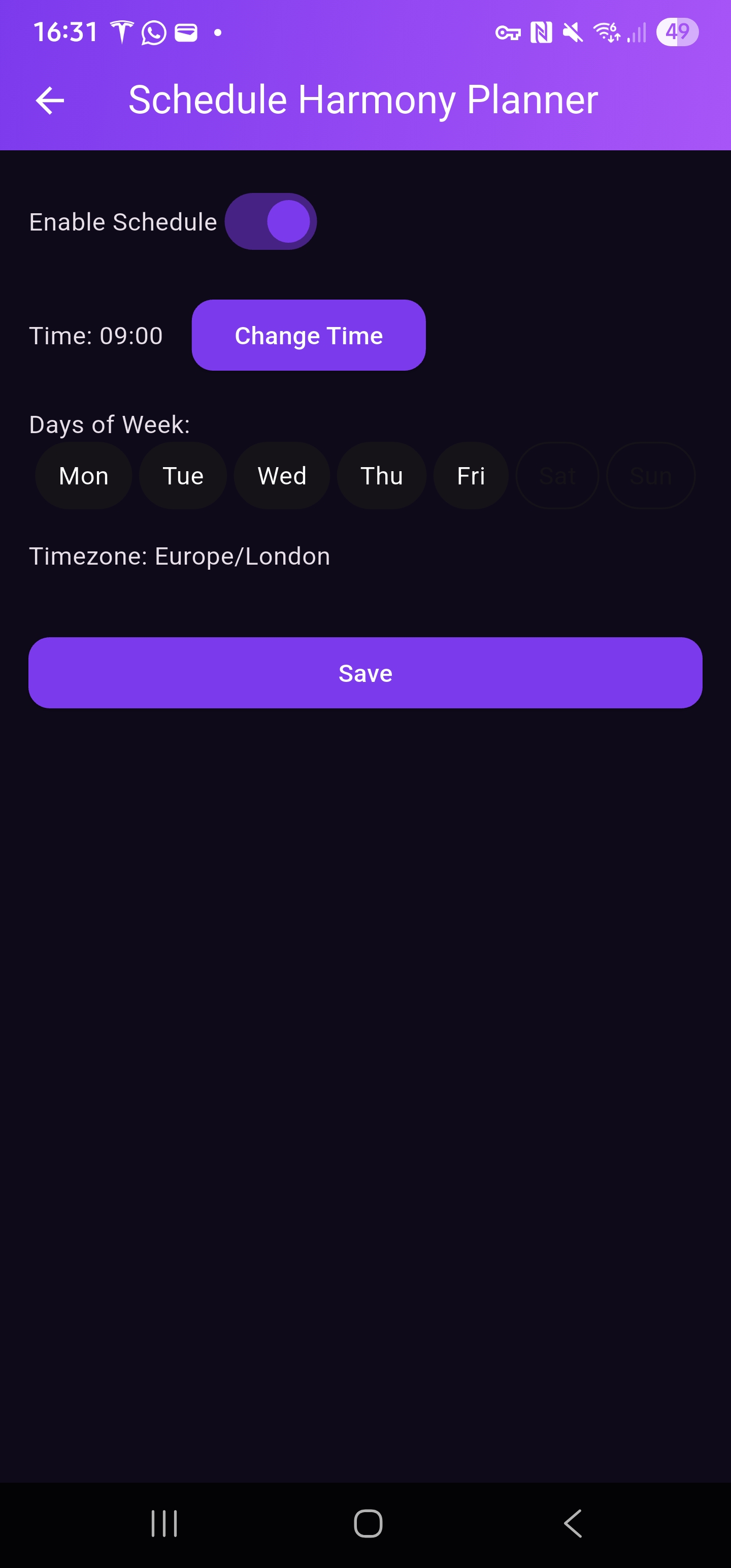
Agent scheduling interface
Getting to the Schedule Screen
Open Agents Tab
From main dashboard
Find Local Agent
Select agent to schedule
Open Details
Tap agent card
Tap Schedule
Look for clock icon ⏰
Configuring the Schedule
The Agent Schedule screen provides all the controls you need to define when your agent should run.
1. Enable or Disable
Find the Enable Schedule switch at the top of the screen
Toggle it ON to activate. When off, the agent won't run automatically
2. Set Execution Time
Current time displays (e.g., "Time: 09:00 AM")
Tap Change Time to open time picker
Select hour and minute, then confirm
3. Select Days of Week
See day buttons: Mon, Tue, Wed, Thu, Fri, Sat, Sun
Tap to select/deselect days (selected days highlight)
Must select at least one day. Example: Mon-Fri for weekdays
4. Timezone
Auto-detected from your device (e.g., "America/New_York")
Schedule runs based on this timezone
Ensure device time settings are correct
Managing Your Schedule
Saving New Schedule
Configure time and days
Tap Save button
Confirmation appears, schedule is active
Updating Schedule
Open existing schedule screen
Make desired changes
Tap Save to apply
Deleting Schedule
Open schedule screen
Tap Delete button
Confirm in dialog box
Tip: Use the Enable Schedule switch to temporarily disable the schedule without deleting the configuration.
Example Use Case
Goal
Get a "Good Morning" summary from a local news-reading agent every weekday at 8:00 AM
Steps:
Navigate to the agent's schedule screen
Enable the schedule
Set the time to 8:00 AM
Select Mon, Tue, Wed, Thu, and Fri
Tap Save
The agent will now automatically run and send you a message every weekday morning!