
Phone Superpowers
Use live browser watching, attach camera photos and files, run Apple Shortcuts, analyze screens on Android, and use wake words.
Phone superpowers
HITL gives your personal agents sensory and operational capabilities on your mobile device, including web page observation, camera and document attachments, system shortcuts, and hands-free voice.
In-app browser watching
When an agent interacts with web content or guides you through online research, you can browse together in the integrated browser:
- Floating indicator capsule: The floating pill in the browser header indicates agent state.
- Live Watching: The agent actively monitors the page DOM, reading text, tracking form fields, or extracting tables as you navigate.
- Waiting on you: The agent has paused to let you solve a captcha, log in, or complete a payment before resuming analysis.
Media, camera, and document attachments
From any conversation composer, tap the attachment button to open the media picker sheet:
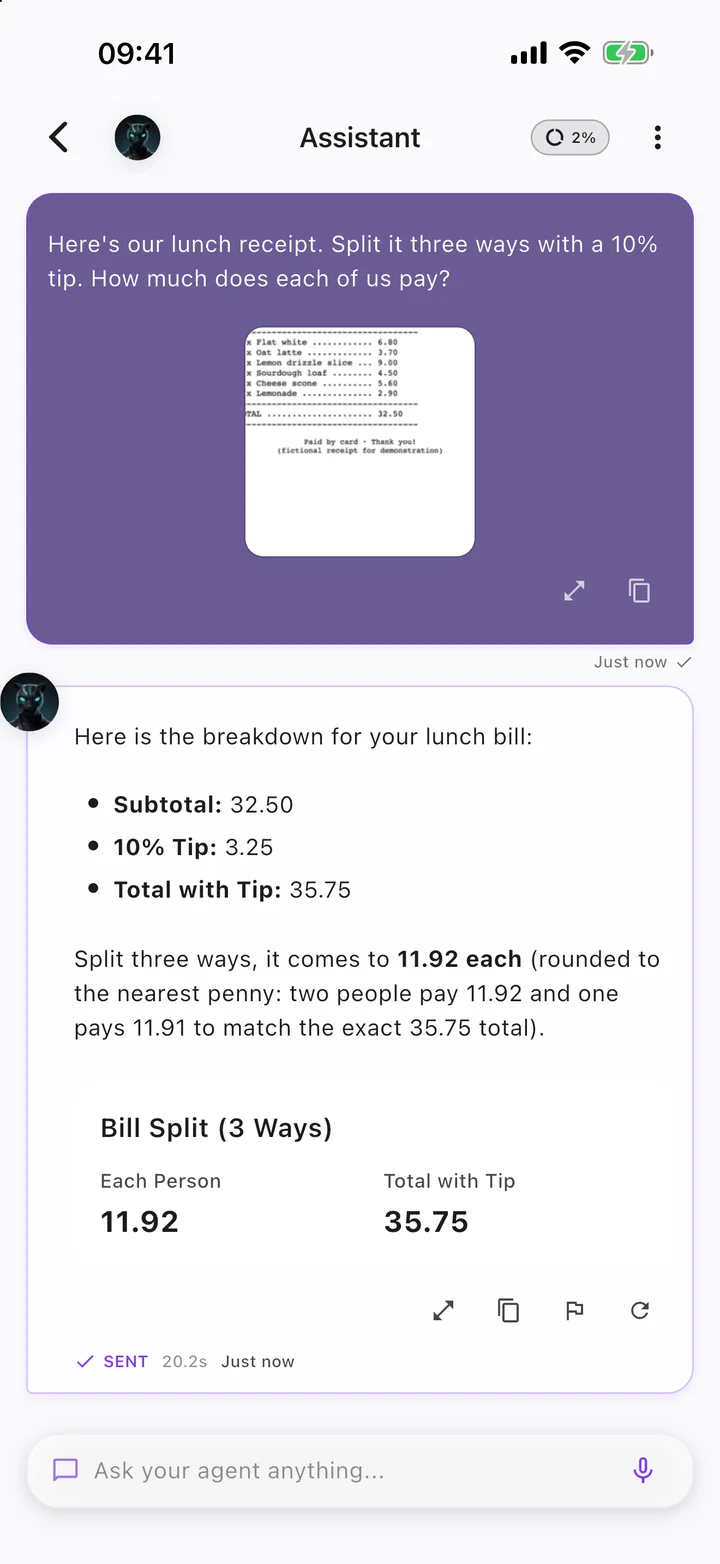
- Capture Photo: Take an immediate picture using your device camera for real-time visual analysis or OCR text extraction.
- Choose from Gallery: Select existing photos, screenshots, or videos from your photo library.
- Attach Document / File: Upload PDF documents, spreadsheets, text files, or data exports for deep analysis.
Apple Shortcuts and Siri on iOS
You can trigger agents and send instructions without opening the HITL app manually:
- Open Profile → App Experience & Voice → Apple Shortcuts to reach the screen titled Apple Shortcuts.
- Tap Install HITL Router to add the automated routing workflow to your device.
- Siri voice commands: Use phrases like Ask HITL or Ask Agent to speak a prompt, or invoke the native system intent Ask HITL Agent directly from your widgets or home screen.
Screen analysis on Android
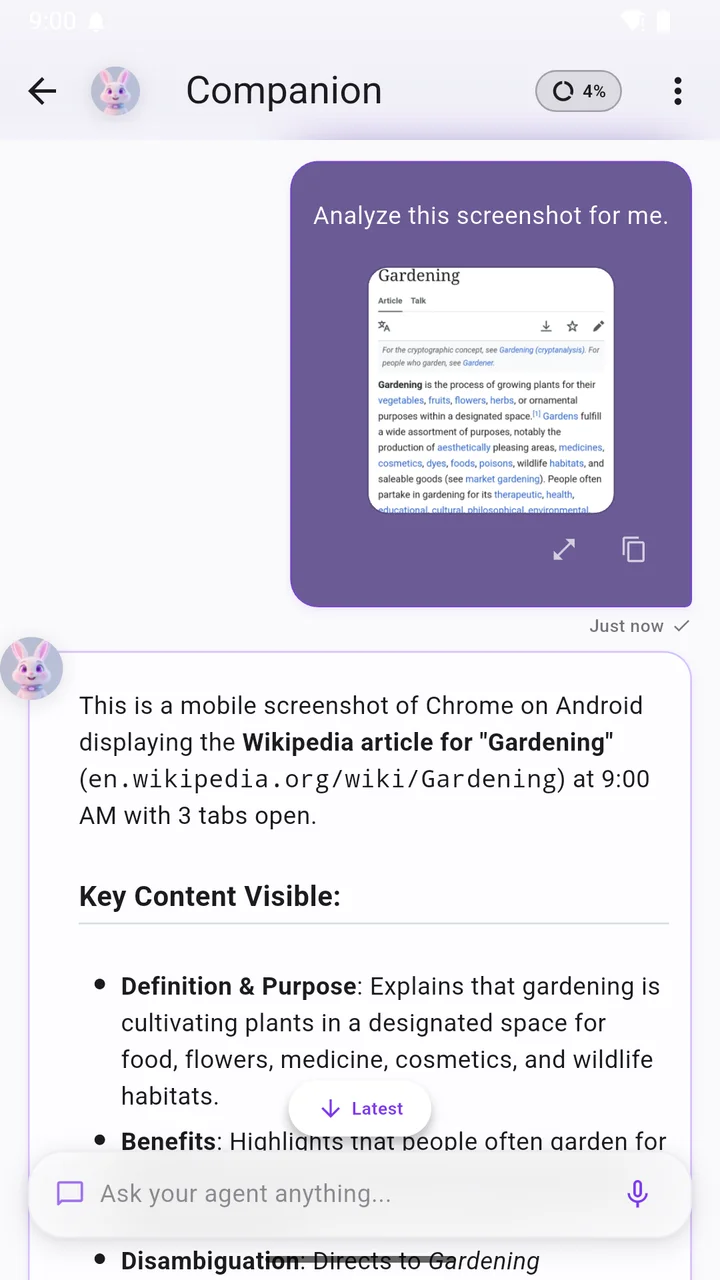
On Android, you can inspect what is currently visible on your device screen without taking manual screenshots:
- Add the Quick Settings tile Analyze Screen to your device notification shade.
- When reviewing a document, browsing social media, or reading an email, pull down Quick Settings and tap Analyze Screen to send the visible screen context to your agent.
Hands-free wake word
You can interact with your Companion completely hands-free:
- Go to Profile → App Experience & Voice → Wake Word Setup.
- Say "Hey HITL" near your phone to wake your Companion and initiate voice interaction without tapping the screen.
Try this
- Try: Analyze this screenshot and summarize the main points
- Try: Watch this web page and extract the comparison table
- Try: Configure my hands-free wake word settings