
Use Your Agents and Approvals
Chat with your agents using text or voice, review notifications in your Inbox, and manage tool approvals.
Use your agents and approvals
HITL provides continuous, multi-modal interaction with your agents alongside strict human oversight for actions that touch your data or device.
Chatting with agents
When you open a conversation, the composer prompt reads Ask your agent anything.... You can interact through several input channels:
- Text: Type prompts, questions, or follow-up instructions.
- Dictation: Tap Dictate message on the microphone icon for speech-to-text input.
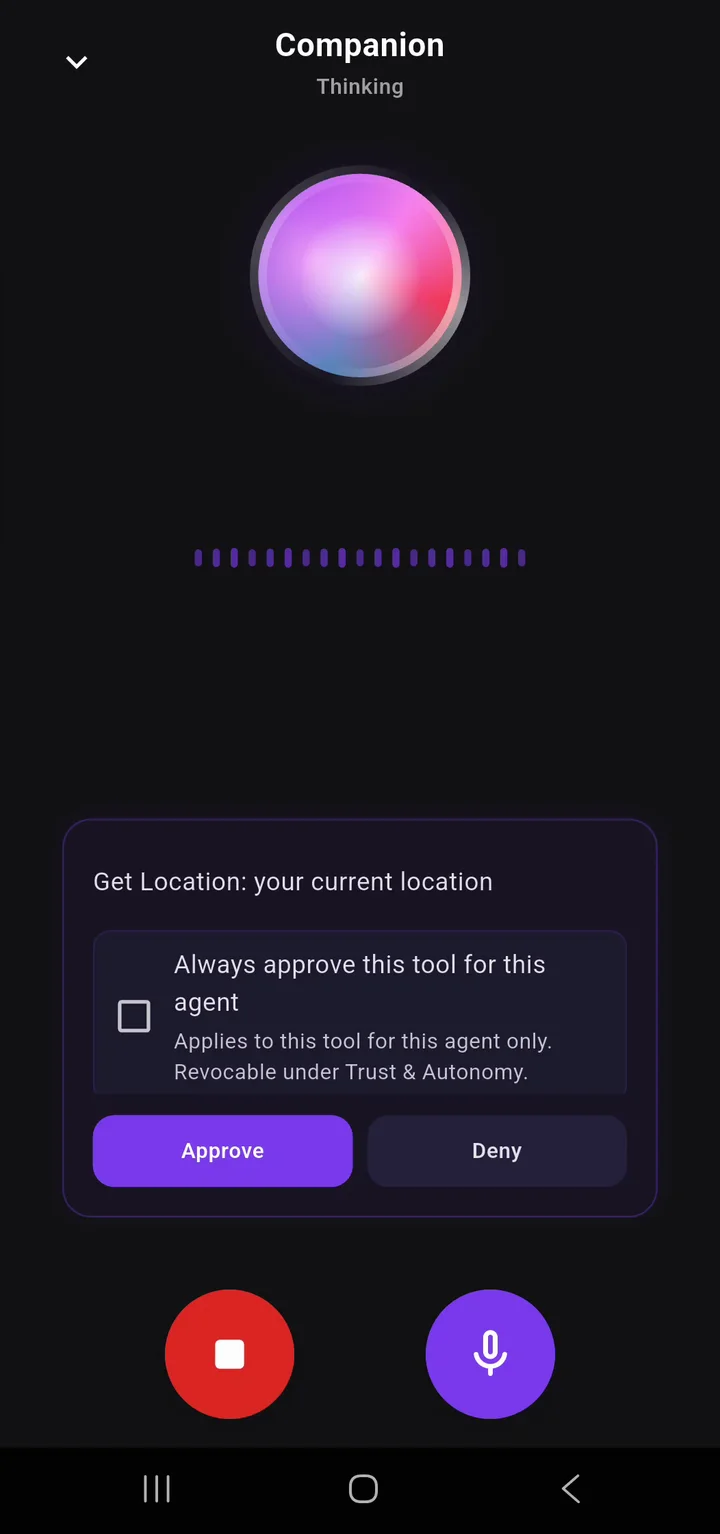
- Voice conversation: Tap Start voice conversation to launch the full-screen voice surface. The surface guides you with Start talking to begin, updating its state through Listening, Thinking, and Speaking as the conversation flows.
- Attachments: Tap Add attachment to send images, documents, or files for analysis.
The Inbox
The Inbox tab gathers all agent conversations and pending requests requiring your attention:
- Tabs: Switch between Focused for priority interactions and Other for routine threads.
- Search & filter: Find specific chats with "Search inbox..." or filter by agent type.
- Pending requests: Conversations awaiting your response display a Pending status badge. There is no separate history section; past threads remain accessible directly in the Inbox list.
Human-in-the-Loop approvals
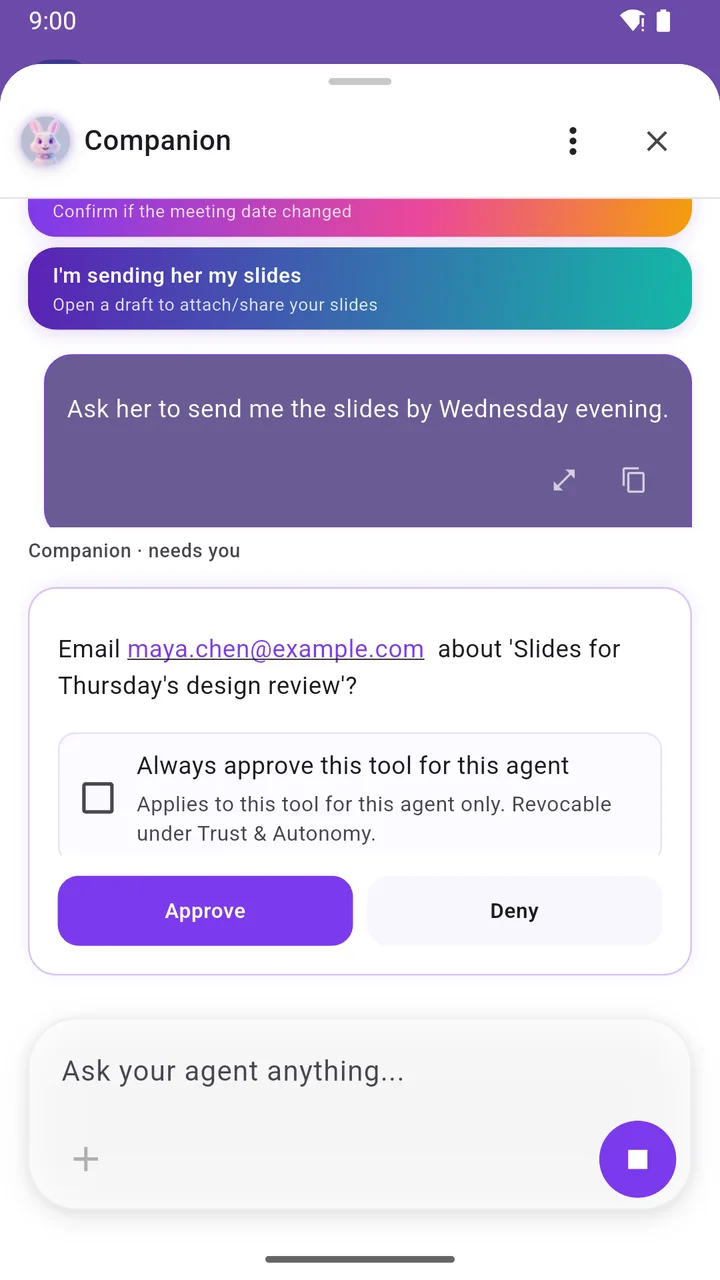
When an agent needs to execute a tool that alters external state, it requests your approval:
- Choices: Each request presents clear Approve and Deny buttons.
- Remembering choices: Check Always approve this tool for this agent to bypass future prompts for that specific tool-agent pair (revocable anytime under Trust & Autonomy).
- Multiple requests: When several actions are queued, step through them with "Approval N of M" and tap Next to proceed. Note that there is no standalone "Always allow" button.
- Trust levels: Tools operate under three protection levels: Free (No Approval), Soft Confirm (Ask to Approve), and Hard Confirm (Strict Guard).
Where pending work appears
Pending requests are surfaced throughout the app so you never miss an action:
- The centre navigation button changes to Reply to request.
- The Inbox tab shows a pending count badge and Pending pills on conversation rows.
- Individual agent cards display "Awaiting approval: <tool>".
- The Home dashboard highlights "Waiting for your approval" in its activity feed.